
Claude tests the app itself: simulator, emulator and device
How an agent builds my Flutter app, launches it on a simulator, emulator or device, operates it and reads the logs, and what I defined for that in two skills and a mod.
The problem: describing the bug instead of seeing it
Putting a UI bug into words takes me longer than finding it. A finding from the review might say, for example, that a button does nothing after navigating back. To check that, I used to build the app, start the emulator, click through to the spot and follow the log on the side. Then I typed the result into the chat so the agent knew what I had seen. It had to believe what I described, and I had to believe what it concluded from the code.
Today the agent launches the app itself, operates it and reads the logs alongside. I watch it in a pane and step in when I want to.
QA workflow: the agent looks for bugs itself
Skills and mod together are also suited for a QA run. The agent navigates through the app autonomously and looks for critical bugs in the interface while I watch in the pane and can step in.
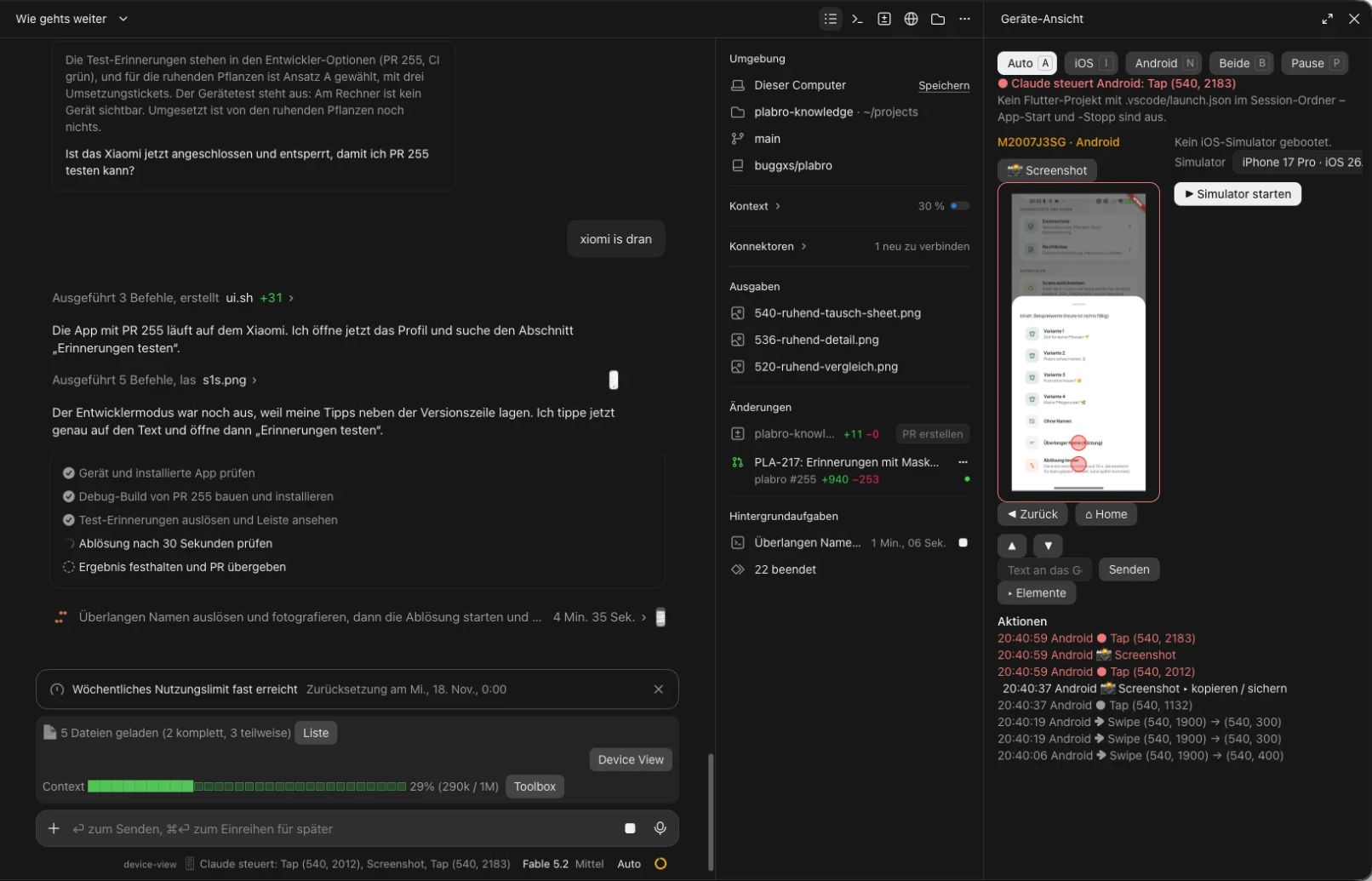
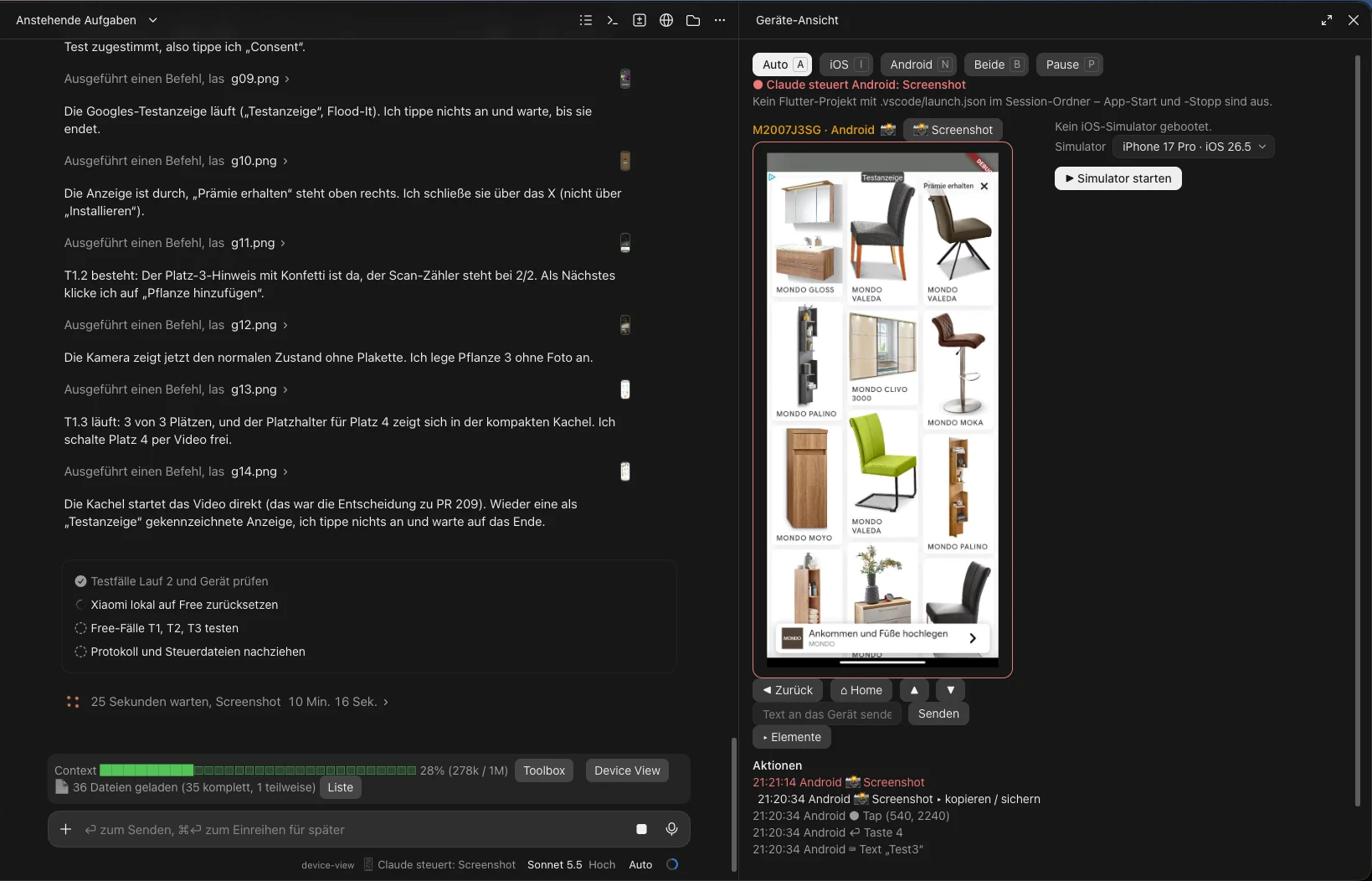
The runs in the images follow fixed test cases with IDs like T1.2 and T1.3. The agent works through them one after another, reads the screenshot after each step, describes the state and records whether a case passes. Before a series of tests it puts the device into the right starting state, for example the free version of the app, and at the end it updates the log. That way a test run can be repeated without me clicking through it myself.
With the user settings described further down (dark mode, 200% font size, languages), it checks the same flows under other conditions as well.
The setup
Three parts of my Claude Code setup work together:
- Skill
flutter-android-debugging: Launches the app on an Android emulator or a physical device (USB or Wi-Fi debugging), controls it viaadband evaluates Flutter and system logs. - Skill
flutter-ios-debugging: The same for the iOS simulator and for a real iPhone, with one restriction on the device (see below). - Mod
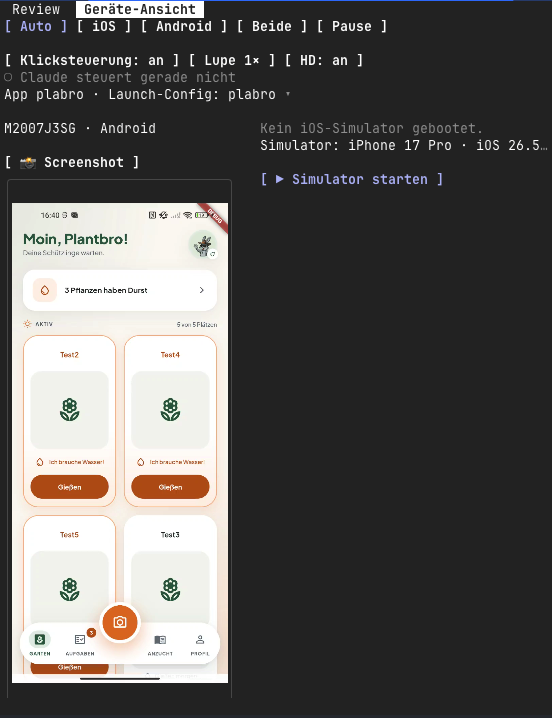
device-view: Shows the simulator and emulator as a live image in a pane, including the agent's taps and swipes. I can click in it myself, take screenshots and start, stop and restart the app.
The skills are instructions with helper scripts. The mod is the interface for them.
A check from start to finish
This is how the check of a finding from the review goes:
- I tell the agent which finding to check on the device.
- It determines project, device and launch config and asks back when something is missing, such as the choice of flavor or whether the device is connected and unlocked.
- It builds the app, launches it and waits for an end state. I see the build in the terminal tab.
- It navigates to the affected spot and triggers the error case.
- It compares screenshot and log. A finding only counts as confirmed or refuted when both fit together.
- For a fix, it reloads the code via hot reload and repeats the run.
- It records the result and hands it over to the pull request.
I have to log in myself. The skill does not enter credentials, and that also applies to tests on staging systems.
Not just the normal case
The agent does not check a feature only in the default state. It also plays it through under settings that users can change: light mode and dark mode, 200% font size, the app's languages and further options. Whether a layout still fits at double font size or a text stays readable in dark mode shows up in the screenshot right after the implementation.
For that, the agent has to change settings on the device. It does so only after asking: it asks in the chat, and I approve. This also applies to a physical device. For the font size test on the iOS simulator, it first notes the original value, then sets the larger level via simctl ui … content_size and restores the old value afterwards.
This happens in two situations. After an implementation, the agent checks whether the feature is built correctly and everything looks good. And it catches up on tests that were still outstanding in an earlier session.
It works through a checklist that stays visible in the chat: check device and installed app, build and install the debug build of the pull request, trigger the function, record the result. After each step it reads the screenshot, describes what it sees and derives the next step from that.
Which devices the agent operates
On the iOS simulator, the Android emulator and a physical Android device, the agent operates the app itself.
Real iPhone: I operate, Claude reads
On a physical iPhone, the agent operates nothing. I operate the device, and it reads the logs. A real iPhone cannot be controlled through the command line, unlike a simulator or an Android device with adb. The skill therefore defines it that way.
The device view
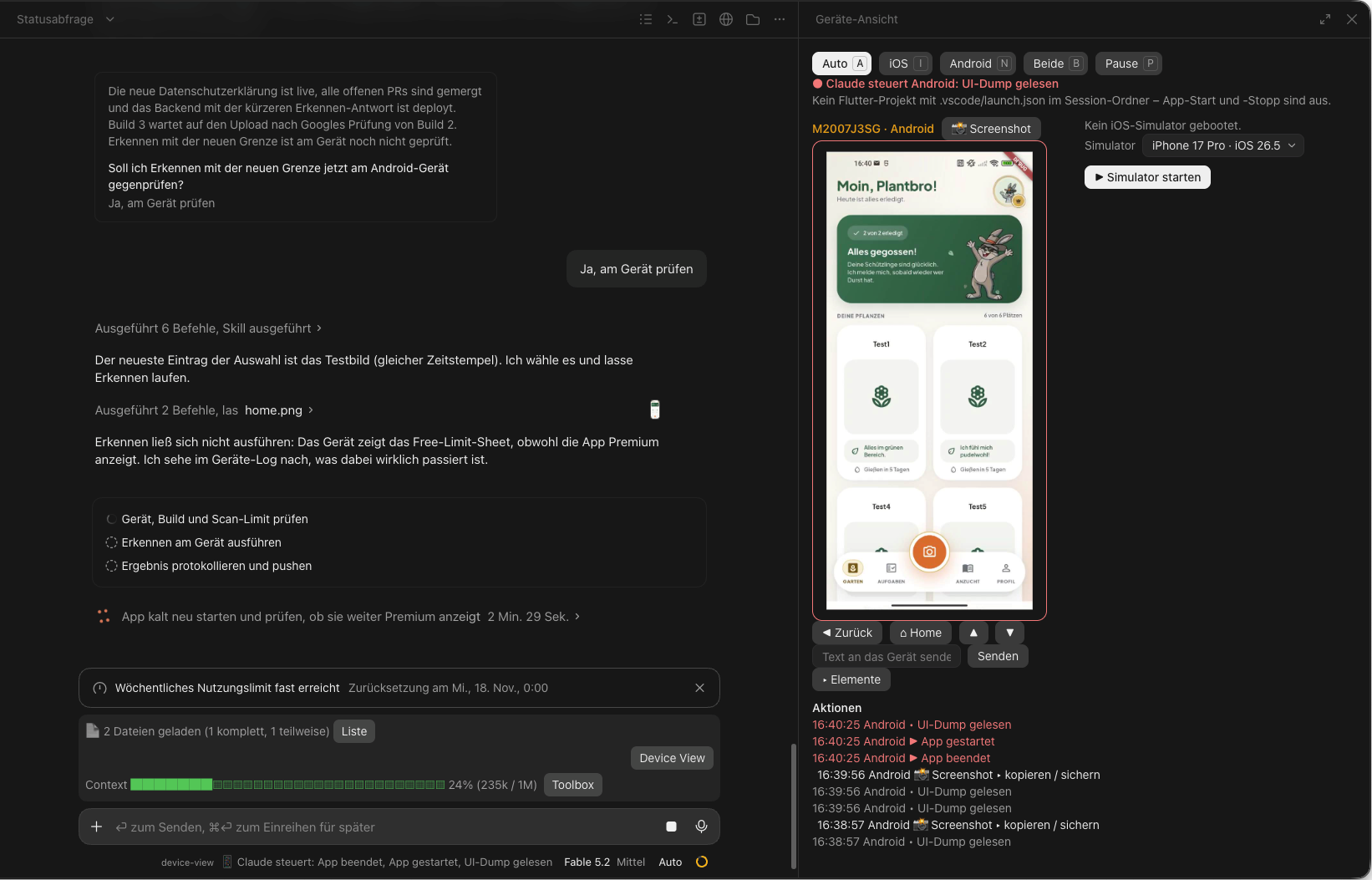
The device-view mod makes visible what the agent does. The pane shows the simulator, emulator or device as a live image and shows where it taps or swipes. The image consists of screenshots that are constantly refreshed. My clicks in the image become taps, Claude controls the same device through the command line, and the pane draws both as a marker and in a list of actions.
I have the same controls as the agent: a click in the image is a tap, dragging is a swipe, and there are back, home, a text field and a list of the labeled elements on the screen. If a device is missing, the pane offers the installed simulators and AVDs to start and shuts them down again as well. If the session runs in a Flutter project with a launch config, it shows per device whether the app is running and offers start, stop, restart, hot reload and hot restart as buttons.
Sharp image in the terminal: Ghostty or kitty
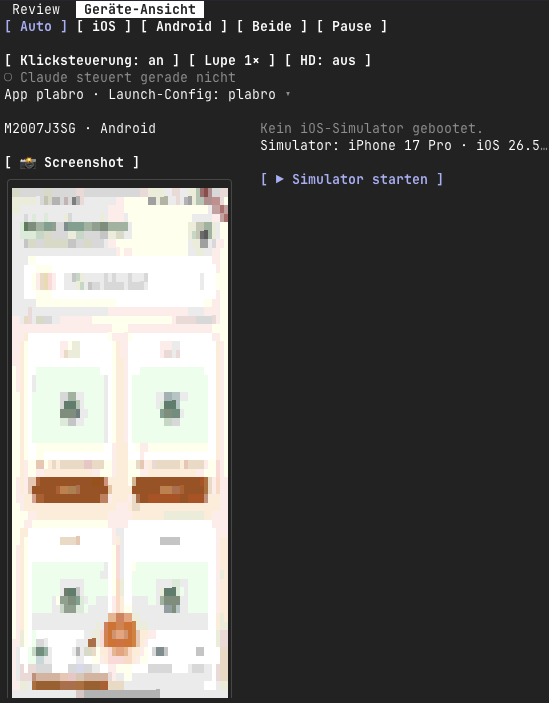
How sharp the image is depends on the terminal. Only Ghostty and kitty can draw real pixels. There I switch on “HD” in the pane (button or key h); otherwise the image stays built from characters and looks pixelated. Claude Code has to be started in Ghostty or kitty for that; in Terminal.app, iTerm2 and others it stays with the character image. In the desktop app the image is sharp without further setup, but I cannot click in the image there. The display and Claude's control work anyway.
The difference is clear: HD is off in the first image and on in the second.
Screenshots as evidence
Every screenshot, whether Claude or I triggered it, appears in the list of actions. I can copy it or save it to the desktop. In the review pane from the post Code reviews with Claude Code: the sweet spot between control and speed, the session's screenshots are also available as attachments. I attach them to the comment, for example as proof that a finding was reproduced on the device. In a GitLab merge request they land directly in the comment, side by side at 200 pixels wide. On GitHub I drag them into the comment by hand after sending, because the API does not accept images.
Limits and pitfalls while using the skills and the mod
- Approval and prohibitions: No login and no real credentials, ever. The agent may only change system settings, uninstall or delete app data with my explicit approval in the chat.
- Seen or inferred: The skill requires the agent to report what it saw on the device and what it only derived from the logs.
- Wrong tap spot: The agent enables the app's developer mode by tapping the version line several times. On the first attempt its taps landed next to the line, and the mode stayed off. It noticed that in the screenshot and then tapped exactly on the text.
- Test ads: When a test ad is running, the agent taps nothing, waits until it ends and closes it via the X, not via “Install”.
- App and device disagree: While checking a new limit, a function could not be executed. The device showed the free-limit sheet although the app displayed Premium.
- Device ready: A physical device has to be connected and unlocked. I make sure of that, and the agent asks for it.
- Screenshot lags behind: On a busy emulator,
screencapsometimes still shows the old frame shortly after a tap. When in doubt, the agent therefore checks the UI dump, which is current, and repeats the screenshot afterwards. - Taps do not arrive (Xcode 27): AXe reports success, but the app reacts to nothing. The simulator's touch service is then not running or stuck. Restarting the service helps, and the pane has a button for it. Without DeviceHub, clicks do not reach a simulator at all; the pane detects that and shows a hint.
- Simulator without display: CoreSimulator occasionally rejects a boot. The second boot came up without a display several times for me, and the app did not start. Then I shut the simulator down and boot it again instead of repeating
flutter run. - Hot restart is not a cold start: Native views and SDK singletons stay in place. For native misbehavior I start the app cold.
- One session per device: Every session with an open pane streams to the same devices in parallel. I therefore keep it open in one session only.
Technical details
How the image gets into the pane
The display is a stream of single images that are continuously recaptured: via AXe for the iOS simulator and via adb for Android. A small Swift helper, which the mod compiles once on the first image, converts them. The pane takes at most 10 images per second for iOS and 5 for Android. That is enough because the screen rarely changes between two taps, and it saves processing time.
Two paths lead from the pane to the device. The mod converts my clicks in the image into fractions of the screen size and sends them as tap, swipe, text or key, via adb on Android and via AXe on iOS. Claude controls the same devices through the command line, also with adb or AXe or the simulator tool. The mod reads these commands along and draws the marker in the image and the list of actions from them: when something was tapped or swiped where, and when a screenshot was taken.
Launching like in VS Code
The agent reads the project's .vscode/launch.json and starts the app with the same settings as “Run and Debug”: flavor, target, mode and Dart defines. A helper script evaluates the defines and prints only the names of the keys, never the values. An auth key therefore appears neither in the chat nor in the log. flutter run runs in a terminal tab I can see and also writes to a log file.
A script waits for the outcome and recognizes every end state: running app, failed build, lost connection, timeout. Nothing hangs just because the build fails immediately.
Reading logs at the same time
While it clicks, the agent reads along: Flutter exceptions from the log file, native messages via logcat or simctl log stream. On iOS, an empty or black screen is almost always a rendering exception in the log. For targeted questions it adds temporary debug markers, backs up the file first and restores it from the backup afterwards. It triggers hot reload and hot restart via signal, and a cold start via am force-stop or by restarting the app.
Outlook
The same principle works on the web: browser extension or built-in browser, with console and network as evidence. That is a topic of its own.